
How To Handle Row Selection in UITableView

If you’ve followed the iOS programming tutorials, I believe you should manage to create a simple Table View app with custom table cell. So far we focus on displaying data in the table view. But how do we know when someone taps on the table row? This is what we’ll cover in this post and show you how to handle row selection.

First, let’s revisit our app and see what we’ll add to it.
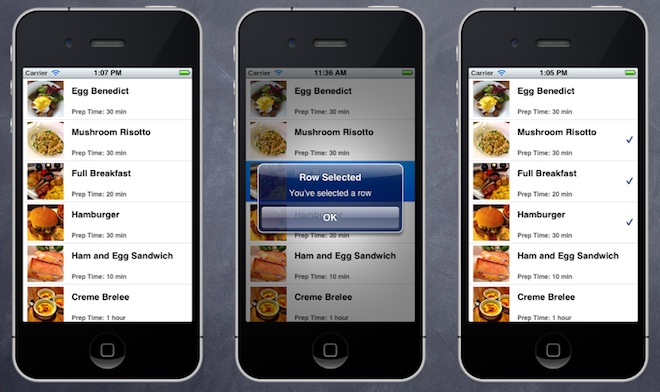
Simple Table App - Row Selection

There are a couple of changes we’ll try it out in this tutorial:

  • Display an alert message when user taps a row
  • Display a check mark when user selects a row

Understanding UITableViewDelegate

When you first built the Simple Table View app, you’ve declared two delegates (UITableViewDelegate, UITableViewDataSource) in the SimpleTableController.h:

1
2
3
4
5
#import <UIKit/UIKit.h>

@interface SimpleTableViewController : UIViewController <UITableViewDelegate, UITableViewDataSource>

@end

As explained in the earlier tutorial, both delegates are known as protocol in Objective-C. You have to conform with the requirements defined in these protocols in order to build a UITableView.

It’s very common to come across various delegates in iOS programming. Each delegate is responsible for a specific role or task to keep the system simple and clean. Whenever an object needs to perform certain task, it depends on another object to handle it. This is usually known as separation of concern in system design.

When you look at the UITableView class, it also applies this design concept. The two delegates are catered for different purpose. The UITableViewDataSource delegate, that we’ve implemented, defines methods that are used for displaying table data. On the other hand, the UITableViewDelegate deals with the appearance of the UITableView, as well as, handles the row selection.

It’s obvious we’ll make use of the UITableViewDelegate and implement the required method for handling row selection.

Handling Table Row Selection

Before we change the code, you may wonder:

How do we know which methods in UITableViewDelegate need to implement?

You can always refer to the Apple’s iOS programming reference. There are two ways to access the documentation. You can access the API document on Apple’s website. Or simply look it up inside Xcode. For example, you can bring up the API document of UITableViewDelegate, just place the cursor over the class name and press “control-command-?”. You’ll see the following popup:

xcode api doc shortcut

Shortcut to Access API Doc

Click the UITableViewDelegate Protocol Reference to display the API document:

UITableViewDelegate Protocol Reference

UITableViewDelegate Protocol Reference

If you’ve read through the document, you’ll find these methods that are used for managing row selection:

– tableView:willSelectRowAtIndexPath:
– tableView:didSelectRowAtIndexPath:

Both of the methods are used for row selection. The only difference is that “willSelectRowAtIndexPath” is called when a specified row is about to be selected. Usually you make use of this method to prevent selection of a particular cell from taking place. Typically, you use “didSelectRowAtIndexPath” method, which is invoked after user selects a row, to handle the row selection and this is where you add code to specify the action when the row is selected. In this tutorial, we’ll add a couple of actions to handle row selection:

  • Display an alert message
  • Display a check mark to indicate the row is selected

Let’s Code

Okay, that’s enough for the explanation. Let’s move onto the interesting part – code, code, code!

In Xcode, open the “SimpleTableViewController.m” and add the following method before “@end”.

1
2
3
4
5
6
7
8
9
- (void)tableView:(UITableView *)tableView didSelectRowAtIndexPath:(NSIndexPath *)indexPath
{
    UIAlertView *messageAlert = [[UIAlertView alloc]
                                    initWithTitle:@"Row Selected" message:@"You've selected a row" delegate:nil cancelButtonTitle:@"OK" otherButtonTitles:nil];
   
    // Display Alert Message
    [messageAlert show];
   
}

The code is very easy to understand. When a row is selected, the app creates an UIAlertView and shows an alert message. Try to run the app and this is what the app looks like when you tap a row:

SimpleTableApp Row Selected

When a row is selected, an alert message is displayed

Your Exercise

For now, we just display a generic message when a row is selected. It’s always better to display an informational message like below:
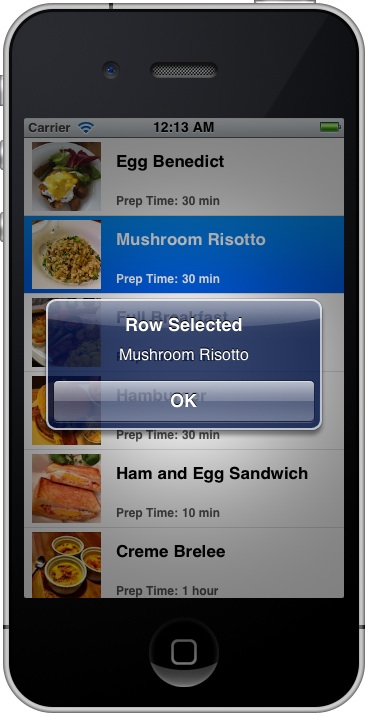
SimpleTableApp Row Selected Recipe

Think about how you can alter the code (hint: the indexPath parameter contains the row number of the selected row) and display the message like the screenshot shown above. It’s not difficult to do so if you’ve followed the previous tutorial.

Easy, right? With the use of delegate, it’s very straightforward to detect row selection. Next, we’ll add a few lines of code to display a tick for the selected item. Before that, let me take a look at the default content of a table cell:

UITableViewCell Structure

Default Structure of a UITableViewCell

A table cell can be broken into three parts:

  • Image – the left part is reserved for displaying thumbnail just like what we’ve done in the Simple Table App tutorial
  • Content – the main part is used for displaying text label and detailed text
  • Accessory view – the right part is reserved for accessory view. There are three types of default accessory view including disclosure indicator, detail disclosure button and check mark. The below figure shows you how these indicators look like.
TableCell Accessory View

UITableViewCell Accessory View

To display a check mark when a row is selected, you just need to add two lines of code after the “[messageAlert show]“:

1
2
    UITableViewCell *cell = [tableView cellForRowAtIndexPath:indexPath];
    cell.accessoryType = UITableViewCellAccessoryCheckmark;

The first line retrieves the selected table cell by using the indexPath. The second link updates the accessory view of the cell with a check mark.

Compile and run the app. After you tap a row, it’ll show you a check mark.
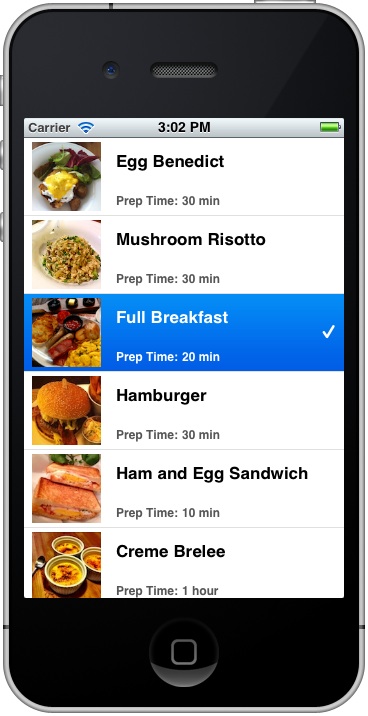
SimpleTableApp Check Mark

For now, when you select a row, that row will be highlighted in blue color. If you don’t like it, try to add the following code to deselect the row.

1
[tableView deselectRowAtIndexPath:indexPath animated:YES];


What’s Upcoming Next?

What do you think about the series of Table View tutorials? I hope you’ve learnt a ton! By now, you should have a better understanding about how to create table view, customize table cells and handle table row selection. Make sure you understand the information presented in the tutorials as UITableView is one of the common UI elements in iOS. If you have any questions, head to our forum and share with us.

There are still lots of stuffs to learn in iOS programming. In coming tutorials, we’ll see how you can replace the recipe array with a file and explore Navigation Controller, as well as, Storyboard to build a more complex application.

You May Like These:

  • Sue Wright

    I love your tutorials, you are the only one who makes complete sense. What I would like to do, is to take your Menu table example which is just what I was looking for and when you click on a recipe it brings up another viewcontroller scene with more details on. In my case the first cell on my table is BOAT abnd i want to bring up a viewconroller that has boat details on ( I have already designed and completed these) Please help me attache my table to these screens thanks

    • http://www.appcoda.com Simon Ng

      In the upcoming tutorials, I’ll show you how to use Storyboard and Navigation Controller to display the details of the recipes. This is a recommended UI practice as you can find in other apps.

  • Ross B

    these tutorials are fantastic, I just wished you had more! By the way, you should put a link to this tutorial at the end of the previous one (unless i just missed it), but I had some trouble figuring out if there was one after the 2nd table view tutorial.

    keep up the good work, thanks a bunch.

    • http://www.appcoda.com Simon Ng

      Glad to hear the tutorials are useful. More will come in coming weeks. It’s my pleasure to share what I know about iOS programming.

      Also thanks for your suggestion. I’ll add a link after each tutorial.

  • Prabhakar Shanmugam

    Hi

    Your site is comparable to “http://tutsplus.com”

    Infact Better..

    Clean Site. No Ads.

    Please do more tutorials. Explanation is so clear that we dont need a video screen cast.

    Keep up the great work.

    Thank you
    Prabhakar Shanmugam

    • http://www.appcoda.com Simon Ng

      I love tutsplus.com. What a compliment! I’ll definitely put up more tutorials. It’s really great to help people learn iOS programming.

  • pdwalker

    The API documentation didn’t appear for me until after I selected, downloaded and installed the api documentation under Preferences, Downloads, Documentation.

    Just mentioning it in case someone else doesn’t have it installed and is wondering where it is.

  • Dj

    im not sure why but I’ve looked over everything a ton of times but no display message pops up and I’m fairly certain i got the didSelectRowAtPath code right it seems pretty simple but no message heres my viewcontroller.m file

    //
    // SimpleTableViewController.m
    // SimpleTable2
    //
    // Created by newuser on 5/30/12.
    // Copyright (c) 2012 __MyCompanyName__. All rights reserved.
    //

    #import “SimpleTableViewController.h”
    #import “SimpleTableCell.h”

    @interface SimpleTableViewController ()

    @end

    @implementation SimpleTableViewController
    {
    NSArray *tableData;
    NSArray *thumbnails;
    NSArray *timeLabel;

    }
    - (void)viewDidLoad
    {
    [super viewDidLoad];

    // Initialize Table Data
    tableData = [NSArray arrayWithObjects:@"Egg Benedict", @"Mushroom Risotto", @"Full Breakfast", @"Hamburger", @"Ham and Egg Sandwich", @"Creme Brelee", @"White Chocolate Donut", @"Starbucks Coffee", @"Vegetable Curry", @"Instant Noodle with Egg", @"Noodle with BBQ Pork", @"Japanese Noodle with Pork", @"Green Tea", @"Thai Shrimp Cake", @"Angry Birds Cake", @"Ham and Cheese Panini", nil];

    //init thumbnails
    thumbnails = [NSArray arrayWithObjects:@"egg_benedict.jpg", @"mushroom_risotto.jpg", @"full_breakfast.jpg", @"hamburger.jpg", @"ham_and_egg_sandwich.jpg", @"creme_brelee.jpg", @"white_chocolate_donut.jpg", @"starbucks_coffee.jpg", @"vegetable_curry.jpg", @"instant_noodle_with_egg.jpg", @"noodle_with_bbq_pork.jpg", @"japanese_noodle_with_pork.jpg", @"green_tea.jpg", @"thai_shrimp_cake.jpg", @"angry_birds_cake.jpg", @"ham_and_cheese_panini.jpg", nil];
    //init Time
    timeLabel = [NSArray arrayWithObjects:@"30 mins", @"30 mins", @"30 mins", @"30 mins", @"30 mins", @"30 mins", @"30 mins", @"30 mins", @"30 mins", @"30 mins", @"30 mins", @"30 mins", @"30 mins", @"30 mins", @"30 mins", @"30 mins", nil];
    }

    - (NSInteger)tableView:(UITableView *)tableView numberOfRowsInSection:(NSInteger)section
    {
    return [tableData count];
    }
    - (UITableViewCell *)tableView:(UITableView *)tableView cellForRowAtIndexPath:(NSIndexPath *)indexPath
    {
    static NSString *simpleTableIdentifier = @”SimpleTableCell”;

    SimpleTableCell *cell = (SimpleTableCell *)[tableView dequeueReusableCellWithIdentifier:simpleTableIdentifier];

    if (cell == nil)
    {
    NSArray *nib = [[NSBundle mainBundle] loadNibNamed:@”SimpleTableCell” owner:self options:nil];
    cell = [nib objectAtIndex:0];
    }

    cell.nameLabel.text = [tableData objectAtIndex:indexPath.row];
    cell.imageView.Image = [UIImage imageNamed:[thumbnails objectAtIndex:indexPath.row]];
    cell.timeLabel.text= [timeLabel objectAtIndex:indexPath.row];
    return cell;
    }

    - (void)viewDidUnload
    {
    [super viewDidUnload];
    // Release any retained subviews of the main view.
    }

    - (BOOL)shouldAutorotateToInterfaceOrientation:(UIInterfaceOrientation)interfaceOrientation
    {
    return (interfaceOrientation != UIInterfaceOrientationPortraitUpsideDown);
    }

    - (CGFloat)tableView:(UITableView *)tableView heightForRowAtIndexPath:(NSIndexPath *)indexPath;
    {
    return 78;
    }

    - (void)tableView:(UITableView *)tableView didSelectRowAtIndexPath:(NSIndexPath *)indexPath
    {
    UIAlertView *messageAlert = [[UIAlertView alloc]
    initWithTitle:@”Row Selected” message:@”You’ve Selected A Row” delegate:nil cancelButtonTitle:@”Ok” otherButtonTitles:nil];

    //display alert message
    [messageAlert show];
    }
    @end

    • salazzo

      I’m running Xcode 4.6.2 and had this problem. I solved it by going to the SimpleTableViewController.xib file, control-dragging from the table view to the File’s Owner placeholder, and selecting delegate. After that, the alert box showed up when a row was selected. Hope this helps.

    • http://www.facebook.com/bradley.c.woodard Brad Woodard

      Did you set the in your interface (.h) file?

      @interface SimpleTableViewController : UIViewController

    • http://www.facebook.com/bradley.c.woodard Brad Woodard

      In addition to setting the UITableViewDelegate and UITableViewDataSource, did you also set the UIAlertViewDelegate in the interface (.h) file?

  • Amy

    Terrific tutorials! My table looks a lot like what you have and this tutorial helped greatly in achieving the look I want, but I’m stuck in an area I don’t see mentioned. In didSelectTableViewCellAtIndex, I’d like to make a tweak to the text – say make it a different color. How do I get access to it? I can get to its accessory type and background, but can’t see how to get to the custom UILabels and custom UIImages.

    • Amy

      For anyone interested .. I figured it out … when you are in one of the many didSelectRowAtIndexPath, willSelectRowAtIndexPath, etc … if you need to get to your custom labels, views, buttons, etc …

      where you normally might get your “standard” cell like this:
      UITableViewCell *cell=[myTableView cellForRowAtIndexPath:indexPath];

      you can call out to your custom cell like this:
      myCustomCell *cell=(myCustomCell *)[myTableView cellForRowAtIndexPath:indexPath];
      you need the (myCustomCell *) in order to “cast” your custom cell to tell the compiler to expect it a UITableViewCell.

      • http://www.simonblog.com Simon Ng

        Thanks for sharing the tips!

  • Pingback: 第五部分:如何处理UITableView中的行选择 | EntLib.net 技术分享平台

  • Kevin

    I’m not sure why, but the first row that I select does not trigger the alert message. Every row selected DOES alert the message. Probably just a simulator bug, but just wanted some clarification if someone actually knows why that happens

    • soxialit

      me too!

  • jeehabara

    I’m not sure if this has been addressed, but there are some things I would like to know about and see if there is an easy way to fix them. For instance, after selecting a row, it displays the message and shows the checkmark, however, upon scrolling further down the list, I found that every 6 rows, another row displays a checkmark as well. What is causing this?

    Additionally, I would also like to know how to clear the checkmark from the selected row.

    Thank you for your tutorials. They are a joy to follow and learn from. Keep going!

    • soxialit

      same for me

    • http://twitter.com/viterete8 Victor Pinto

      i have the same problem, any solution?

  • Tspoon

    Quality tutorials. Don’t think I’ve seen any better. Well done!

  • http://twitter.com/M_Mynarski Michal Mynarski

    These tutorials is such a great stuff. It’s better source of knowledge about programming than my lectures in college will ever be.

    But I have this little issue with my program after this tutorial.

    Alert never pops up after first clicking. It shows up after second (and then the check-mark arrived) and always give me information from last selection, not the current one.

    My code of this function:

    // funckcja odpowiedzialna za pojawianie się alertu przy wybieraniu

    - (void)tableView:(UITableView *)tableView didDeselectRowAtIndexPath:(NSIndexPath *)indexPath

    {

    //deklaracja alertu “messageAlert”

    UIAlertView *messageAlert = [[UIAlertView alloc]initWithTitle:@”Zaznaczono model” message:[tableData objectAtIndex:indexPath.row] delegate:nil cancelButtonTitle:@”OK” otherButtonTitles:nil, nil];

    //Wyświetlanie alertu

    [messageAlert show];

    //animacja zaznaczenia

    UITableViewCell *cell = [tableView cellForRowAtIndexPath:indexPath];

    cell.accessoryType = UITableViewCellAccessoryCheckmark;

    [tableView deselectRowAtIndexPath:indexPath animated:YES];

    }

    @end

    Could You give me a hint about it?

    • http://www.facebook.com/donheart.banderas Donheart Banderas

      Same issue than me, drove me crazy. Yor method is “didDeselectRowAtIndexPath” that takes the value of the “last selected”. Change it to the right one “didSelectRowAtIndexPath” and works fine.

      • http://www.facebook.com/donheart.banderas Donheart Banderas

        I mean change from:

        -(void)tableView:(UITableView *)tableView didDeselectRowAtIndexPath:(NSIndexPath *)indexPath
        to this one:
        -(void)tableView:(UITableView *)tableView didSelectRowAtIndexPath:(NSIndexPath *)indexPath

        • http://twitter.com/M_Mynarski Michal Mynarski

          You’re just genius. Such a small thing, and I just cannot find it! Thank You so much!

  • Smadge

    Hi Simon,

    Thanks for all your help with these tutorials, where do you find the source code so we can debug our little problems that some of us run into once logged in to appcoda?

    Keep sharing Simon and thanks again

  • http://www.facebook.com/kparker1974 Kerrie Kelly Parker

    Hello. I’ve very much enjoyed this tutorial. I’m still very new to coding and while I’ve looked through everything trying to figure out, could I see the code for the exercise, this one below:

    Think about how you can alter the code (hint: the indexPath parameter contains the row number of the selected row) and display the message like the screenshot shown above. It’s not difficult to do so if you’ve followed the previous tutorial.

    Thank you.

    Kerrie

  • http://twitter.com/yopa_australia YOPA

    Tutorial works fine, EXCEPT that checkmark also appears 7 items down from item checked. Any solutions??

    • http://www.facebook.com/sergtk Sergiy Tkachuk

      The same for me. It seems the bug in the tutorial. Cells with checked marks are reused and checkmarks are not preserved. The solution is to store marks separately and restore values back in functions -(UITableViewCell *)tableView:(UITableView *)tableView cellForRowAtIndexPath:(NSIndexPath *)indexPath.

      • http://www.facebook.com/bradley.c.woodard Brad Woodard

        Sergiy, I don’t understand your reply. Can either you or Simon clarify?

        • Mike

          I’m pretty sure this happens because we’re using reusable cells. In order to save resources, iOS reuses cells as you scroll down, which is why you see the checkmark appear either at the 7th or 12th row (the height of the rows changes how many cells are shown on the screen at a time)

          there are probably a couple ways to solve this, but the first one that comes to mind is creating another array that stores whether or not a row was previously selected, and if so, draw the checkmark.

          • Mike

            Although this isn’t a super elegant solution you can do this.

            1) Create a new array to hold whether or not a cell was selected
            NSMutableArray *tableData;
            NSMutableArray *thumbnails;
            NSMutableArray *prepTime;

            // NEW code
            NSMutableArray *rowsSelected;

            2) Initialise the array with a bunch of @NO boolean values (There are 16 here since previously we had 16 rows) This goes inside of viewDidLoad function

            rowsSelected = [NSMutableArray arrayWithObjects:@NO,@NO,@NO,@NO,@NO,@NO,@NO,@NO,@NO,@NO,@NO,@NO,@NO,@NO,@NO,@NO, nil];

            3) Add an if/else statement to draw the checkmark if the cell was previously selected. Inside the cellForRowAtIndexPath function

            // Existing code
            if(cell == nil){
            NSArray *nib = [[NSBundle mainBundle] loadNibNamed:@”SimpleTableCell” owner:self options:nil];
            cell = [nib objectAtIndex:0];
            }

            // NEW code
            if([[rowsSelected objectAtIndex:indexPath.row]isEqual:@YES]){
            cell.accessoryType = UITableViewCellAccessoryCheckmark;
            }
            else{
            cell.accessoryType = UITableViewCellAccessoryNone;
            }

            4) Add code to set whether or not a row was selected. This goes inside didSelectRowAtIndexPath

            // Old code
            UITableViewCell *cell = [tableView cellForRowAtIndexPath:indexPath];
            cell.accessoryType = UITableViewCellAccessoryCheckmark;

            // NEW code
            [rowsSelected replaceObjectAtIndex:indexPath.row withObject:@YES];

          • Guest

            *new code does not replace old code, it appends to it

  • Chris

    I’m just starting (again) to learn making Apps, and so far these tutorials have helped a great deal. I think they are even better than the “for dummies” book I got last year. Short, simple, and small bites at a time, no deep explanations but hands on. I love it!

    • http://www.simonblog.com Simon Ng

      Great to hear that! Should we publish a book? :-)

  • Pingback: UITableViewCell iOS | tediscript.wordpress.com

  • shailesh

    Superb tutorial :) Very nice :)

  • http://www.facebook.com/bradley.c.woodard Brad Woodard

    Simon,
    Nice tutorial but I’m experiencing the same issue as YOPA – the checkmarks repeat every 12 cells. A fix has been suggested but I am unable to interpret what needs to be done in order to correct. Can you clarify or submit an update to the tutorial to eliminate the repeating checkmarks?