

Core Data Part 2: Update, Delete Managed Objects and View Raw SQL Statement

This is the second article for our Core Data series. Previously, we gave you a brief introduction of Core Data and created a simple app to store all your device information. However, we only showed you how to insert records into data store through Core Data API and left out the update & delete operations.

In this tutorial, we’ll continue to work on the app and focus on the following areas of Core Data:

  • Updating or deleting an object using Core Data API
  • Viewing the raw SQL statement for debugging purpose

Updating or Delete an Object using Core Data

Note: If this is the first time you learn about Core Data, we recommend you to read the first tutorial. But for those who do not want to start from the very beginning, you can download this Xcode project to continue to work on the below tutorial.

In the last tutorial, we already discussed how to fetch and save a managed object using Core Data API. So how can you update or delete an existing managed object from database?

Deleting an Object

Let’s talk about the delete operation first. To allow user to delete a record from the table view, as you know, we can simply implement the “canEditRowAtIndexPath” and “commitEditingStyle” methods. Add the following code to the DeviceViewController.m:

1
2
3
4
5
6
7
8
9
10
11
12
13
14
15
16
17
18
19
20
21
22
23
24
25
26
- (BOOL)tableView:(UITableView *)tableView canEditRowAtIndexPath:(NSIndexPath *)indexPath
{
    // Return NO if you do not want the specified item to be editable.
    return YES;
}


- (void)tableView:(UITableView *)tableView commitEditingStyle:(UITableViewCellEditingStyle)editingStyle forRowAtIndexPath:(NSIndexPath *)indexPath
{
    NSManagedObjectContext *context = [self managedObjectContext];

    if (editingStyle == UITableViewCellEditingStyleDelete) {
        // Delete object from database
        [context deleteObject:[self.devices objectAtIndex:indexPath.row]];
       
        NSError *error = nil;
        if (![context save:&error]) {
            NSLog(@"Can't Delete! %@ %@", error, [error localizedDescription]);
            return;
        }
       
        // Remove device from table view
        [self.devices removeObjectAtIndex:indexPath.row];
        [self.tableView deleteRowsAtIndexPaths:[NSArray arrayWithObject:indexPath] withRowAnimation:UITableViewRowAnimationFade];
    }
}

We’ll not go into the details about how to remove a row from table view as we’ve already covered in our earlier tutorial. Let’s focus on the code of commitEditingStyle method for deleting the managed object from database.

Like saving data, we first grab the manage object context. The context provides a method called “deleteObject” that allows you to delete the specific object from database. Lastly, we invoke the “save” method to commit the change. Following the removal of the object from database, we also remove the record from the table view.

Now, let’s run the app and try to remove a record from database. Your app should look similar to the following:
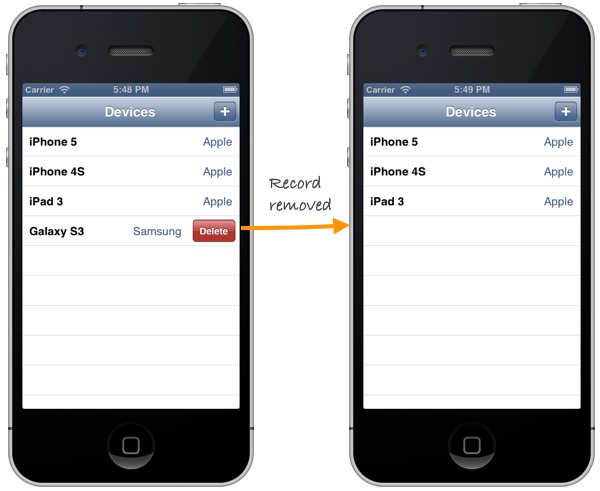
Delete a device from database

Delete a device from database

Updating an Object

Next, we’ll enhance the app to let user update the device information. Go to the Storyboard and add a new segue for the table cell. This segue is used to connect a table cell and the detail view controller. When user selects any device in the table view, the detail view controller will be displayed to show the information of the selected device.
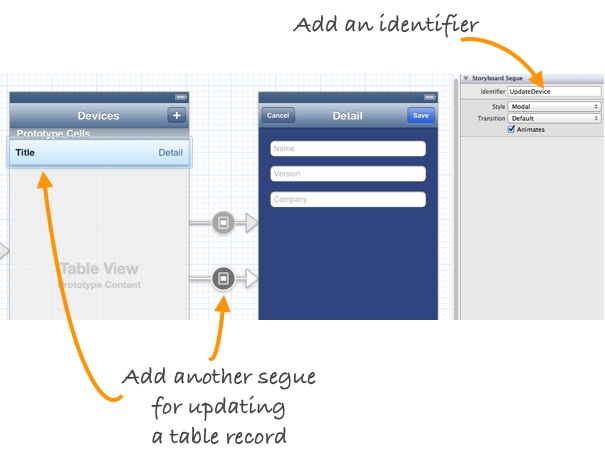
MyStore - Add UpdateDevice Segue

Add a new segue for updating device

To differentiate the segue from the one for adding a new device, we set an identifier as “UpdateDevice”. Next, add the prepareForSegue method in DeviceViewController.m:

1
2
3
4
5
6
7
8
- (void)prepareForSegue:(UIStoryboardSegue *)segue sender:(id)sender
{
    if ([[segue identifier] isEqualToString:@"UpdateDevice"]) {
        NSManagedObject *selectedDevice = [self.devices objectAtIndex:[[self.tableView indexPathForSelectedRow] row]];
        DeviceDetailViewController *destViewController = segue.destinationViewController;
        destViewController.device = selectedDevice;
    }
}

When user selects a specific device in the table view, it’ll go through the “UpdateDevice” segue. We then retrieve the selected device and pass it to the detail view controller.

Note: If you have no idea about what the segue is, go back to check out the tutorial about passing data between view controllers with segue.

Next, add a new properties in the DeviceDetailViewController.h for saving the selected device:

1
@property (strong) NSManagedObject *device;

As always, add the synthesis statement in the DeviceDetailViewController.m:

1
2
@implementation DeviceDetailViewController
@synthesize device;

To display the information of the selected device, we have to change the “viewDidLoad” method:

1
2
3
4
5
6
7
8
9
10
11
- (void)viewDidLoad
{
    [super viewDidLoad];
    // Do any additional setup after loading the view.
    if (self.device) {
        [self.nameTextField setText:[self.device valueForKey:@"name"]];
        [self.versionTextField setText:[self.device valueForKey:@"version"]];
        [self.companyTextField setText:[self.device valueForKey:@"company"]];
    }

}

Let’s stop here and try to run the app again. As your app launches, tap any of the device records and the device information should appear in the detail view.
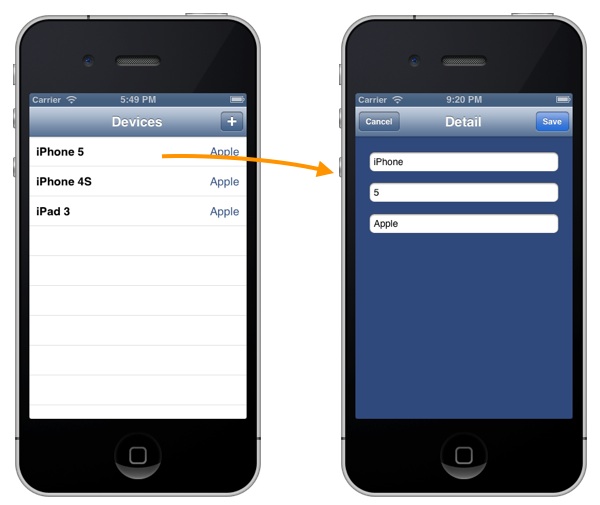
MyStore - Display Detail Device Info

Display Detailed Device Information

However, the app is not finished yet. If you try to edit the information of an existing device, it will not update the device information properly. Go back to the DeviceDetailViewController.m and modify the “save:” method:

1
2
3
4
5
6
7
8
9
10
11
12
13
14
15
16
17
18
19
20
21
22
23
24
25
- (IBAction)save:(id)sender {
    NSManagedObjectContext *context = [self managedObjectContext];
   
    if (self.device) {
        // Update existing device
        [self.device setValue:self.nameTextField.text forKey:@"name"];
        [self.device setValue:self.versionTextField.text forKey:@"version"];
        [self.device setValue:self.companyTextField.text forKey:@"company"];

    } else {
        // Create a new device
        NSManagedObject *newDevice = [NSEntityDescription insertNewObjectForEntityForName:@"Device" inManagedObjectContext:context];
        [newDevice setValue:self.nameTextField.text forKey:@"name"];
        [newDevice setValue:self.versionTextField.text forKey:@"version"];
        [newDevice setValue:self.companyTextField.text forKey:@"company"];
    }
   
    NSError *error = nil;
    // Save the object to persistent store
    if (![context save:&error]) {
        NSLog(@"Can't Save! %@ %@", error, [error localizedDescription]);
    }
   
    [self dismissViewControllerAnimated:YES completion:nil];
}

We’ll update the device information if any of the devices is selected. If there is no selected device, we’ll then create a new device and add it into the database.

Try to test the app again. The update feature should now work properly:
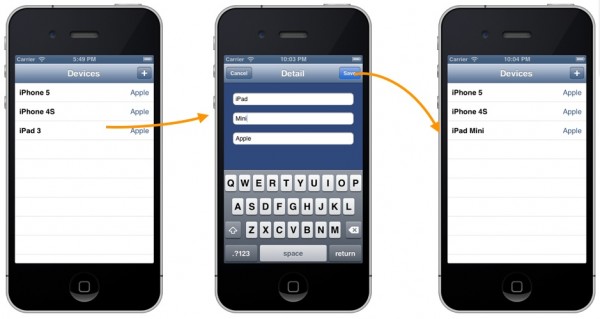
MyStore - Update Device Info Sample

Now you can update the device info properly!

Viewing the Raw SQL Statement

Thanks to Core Data. Even without learning SQL and database, you’re able to perform create, select, update and delete operation. However, for those with database background, you may want to know the exact SQLs executed behind the scene.

To enable SQL output for debugging purpose, click “MyStore” and select “Edit Scheme”.
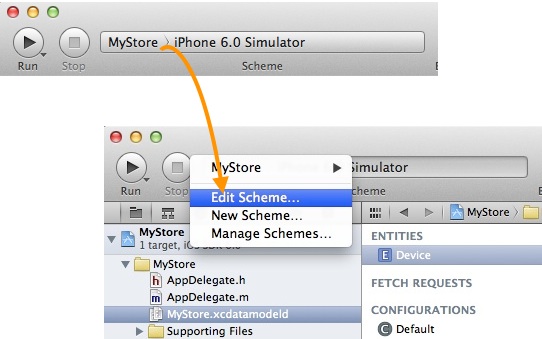
Xcode Edit Scheme

Edit scheme in Xcode project

Under “Argument Passed on Launch” section, click the “+” button and add the “-com.apple.CoreData.SQLDebug 1″ parameter:

Xcode add SQL Debug Parameter

Add SQL Debug Parameter

Click “OK” to confirm. Now run your app again and you’ll see the raw SQL statement (e.g. SELECT and UPDATE) displayed in the output window.
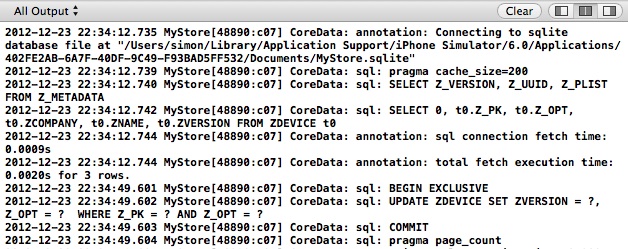
Sql statement output debug

SQL statement for Core Data Debugging

What’s Coming Next

We hope you enjoy the tutorial and have a better understanding about Core Data. For your reference, you can download the complete source code here.

In the later tutorials, we’ll talk about object relationship and show you how to optimize the app using NSFetchedResultsController.

You May Like These:

  • Curlypaws

    Thanks very much Simon. It is really helpful to see the combination of storyboards and Core Data as so many of the example I’ve seen have been pre iOS5.

  • Arie

    I keep getting errors with – (void)prepareForSegue:(UIStoryboardSegue *)segue sender:(id)sender{
    if ([[segue identifier] isEqualToString:@”UpdateDevice”]) {
    NSManagedObject *selectedDevice = [self.devices objectAtIndex:[[self.tableView indexPathForSelectedRow] row]];
    DeviceDetailViewController *destViewController = segue.destinationViewController;
    destViewController.device = selectedDevice;
    }
    }

    • stuart

      I am also getting error in the same area

      • NameTest

        You must include ‘DeviceDetailViewController.h’ file to DeviceViewController.m.
        #import “DeviceDetailViewController.h”

  • Arie

    2012-12-25 17:51:28.604 MyStore[1967:c07] Unresolved error Error Domain=NSCocoaErrorDomain Code=134100 “The operation couldn’t be completed. (Cocoa error 134100.)” UserInfo=0xa057fa0 {metadata={

    NSPersistenceFrameworkVersion = 419;

    NSStoreModelVersionHashes = {

    Device = ;

    };

    NSStoreModelVersionHashesVersion = 3;

    NSStoreModelVersionIdentifiers = (

    “”

    );

    NSStoreType = SQLite;

    NSStoreUUID = “CAC08A0E-5C74-499B-BA50-A14AC5E803EA”;

    “_NSAutoVacuumLevel” = 2;

    }, reason=The model used to open the store is incompatible with the one used to create the store}, {

    metadata = {

    NSPersistenceFrameworkVersion = 419;

    NSStoreModelVersionHashes = {

    Device = ;

    };

    NSStoreModelVersionHashesVersion = 3;

    NSStoreModelVersionIdentifiers = (

    “”

    );

    NSStoreType = SQLite;

    NSStoreUUID = “CAC08A0E-5C74-499B-BA50-A14AC5E803EA”;

    “_NSAutoVacuumLevel” = 2;

    };

    reason = “The model used to open the store is incompatible with the one used to create the store”;

    }

    (lldb)

    • http://www.simonblog.com Simon Ng

      In the iOS simulator, click “iOS simulator” from the menu and select “Reset Content and Settings…”. Then try to build your project and run the app again. This may resolve the issue.

  • Marian

    Hi!
    I like your Tutorials very much. Thank you! I have an idea for a new tutorial, can you explain how to record the voice in an app?

    Marian

    • http://www.simonblog.com Simon Ng

      Great suggestion. I’ll put it in my todo list.

  • Bob

    I just got here from your previous post. As payback for your great article here is a tool I have found very helpful for understanding Core Data

    https://github.com/yepher/CoreDataUtility

  • Justin Bush

    Can you include iCloud compatibility in Part 3? Your tutorial’s have been very helpful, thanks a lot.

    • http://www.simonblog.com Simon Ng

      We’ll cover relationships of Core Data in the next tutorial. But it’s good suggestion. We’ll write one about iCloud in the future.

  • xcdr

    Thank you very much it is perfect tutorial

  • Redkigs

    Thanks a lot! This turial us exactlt what I’m looking for.

  • http://twitter.com/Sodooooo Sodbileg Gansukh

    That’s really good tutorial. Can you please show us how to sync Core Data with MySQL web services with relationship? I’ve already read syncing tutorial on Raywenderlich, but it looks too difficult for me.

  • Jumanji

    just want to say thank you very much this is a great tutorials!!! keep on posting !!!

  • Maciek Macie

    It’s not easy to find a table view + core data tutorial working on latest iOS. Thank you. I hope part 3 will be published soon

    • http://www.simonblog.com Simon Ng

      I am still editing part 3 but it should be available later this month. Stay tuned :-)

  • Wouter

    I feel like you’re intentionally leaving more and more little steps out during your tutorial, and then I get errors, but then I can fix them because of what I got from your earlier lessons!

    In this case for example, adding the segue gaven an error because he didn’t recognize the DeviceDetailViewController then, but of course importing the correct .h file at the top of DeviceViewController.m fixed that!

    Wonderful feeling :-)

  • sumy

    Thankz!!! Great Tutorial…..How can add image to core data in this application(along with each device)?

  • sumy

    How can add umage to core data in this appln( for each new device added)?

  • azma

    Great Tutorial. In the next one, maybe discuss how to allow re-ordering of the tableview cells, having a heck of a time with that.

  • pointer

    Excellent tutorial. Looking forward to seeing part 3.

  • Vladislav Kovalyov

    This is a really great and simple tutorials. But I met a problem. I create another view for edit my data. When I tap “save”, it saves edited data and show on my table view. But when I restart my app, it doesn’t save my changes. How can I fix it?

    P.S. Sorry for my bad English.

  • Hugo

    Hi,

    First of all, two great introductions to Core Data ! I wish you’d write some more about relationships and iCloud sync.

    Anyway, I would like to know how the method save: is invoked if we are only checking if the data has been saved/removed by writing : if(![context save:&error]) { … } ???

    Thanks !

  • Felix

    excellent tutorials! Please when will session 3 be available? Thanks

    • http://www.simonblog.com Simon Ng

      I’ve drafted the 3rd article but need some editing before releasing it here. Stay tuned.

      • Luwen Huang

        This is truly great stuff – the annotated graphics and explanations make these tutorials the best available online – can’t wait for the next article!

  • asaf

    Great tutorial

    Help me so much.

    but i have a problem with my assignment.

    i have an Students db (core data), i have one main view controller that contains the TableView with all context and Fetch.

    to add Student, i have addStudentViewController.

    the insert work great.

    But, i have an editStudentViewController, when i click on accessoryButtonTappedForRowWithIndexPath i send the relevant information but the Edited data not store.

    my question: how can i pass the nsmanagedObject to another viewController or how can i do the edit by another viewController.

    Thanks

  • Aamir khan

    best tutorials but sir only little information about database so you should to uploaded the complete set of the database tutorials………….

  • HLA

    Thanks a lot…
    I would like to know how to dismiss keyboard after typing text in text box.