Chapter 59
Working with Mesh Gradients
iOS 18 introduced Color Mesh Gradients, a powerful new tool for creating stunning and unique gradients in your SwiftUI apps. Unlike traditional linear or radial gradients, mesh gradients provide more control over color transitions and can create unique, fluid effects.
MeshGradient is a powerful tool in SwiftUI for creating intricate color transitions. It uses a grid of control points to define the gradient's appearance, allowing for more natural and smooth color blending.
This chapter will guide you through the basics of using MeshGradient in SwiftUI, complete with easy-to-understand examples. Let's dive in!
The Building Blocks: Points and Colors
MeshGradient works like a color grid. Each point on this grid is called a vertex. Every vertex has:
- A position (where it is)
- A color
- Four bendy lines (called Bezier curves) that connect it to nearby points
These bendy lines help blend colors smoothly between points. If a point is at the edge or corner of the grid, it might have fewer connections.
You can either set these bendy lines yourself or let the system figure them out automatically. This flexibility allows you to create simple or complex color blends, depending on what you need for your design.
Let's start with a simple example:
import SwiftUI

struct ContentView: View {
    var body: some View {
        MeshGradient(width: 2, height: 2, points: [
            .init(x: 0, y: 0),
            .init(x: 0, y: 1),
            .init(x: 1, y: 0),
            .init(x: 1, y: 1)
        ], colors: [
            .red,
            .green,
            .yellow,
            .purple
        ])
        .ignoresSafeArea()

    }
}
This generates a simple mesh gradient using four colors. The colors originate from the corners of a 2x2 grid and smoothly blend towards the center, creating a balanced and symmetrical effect.
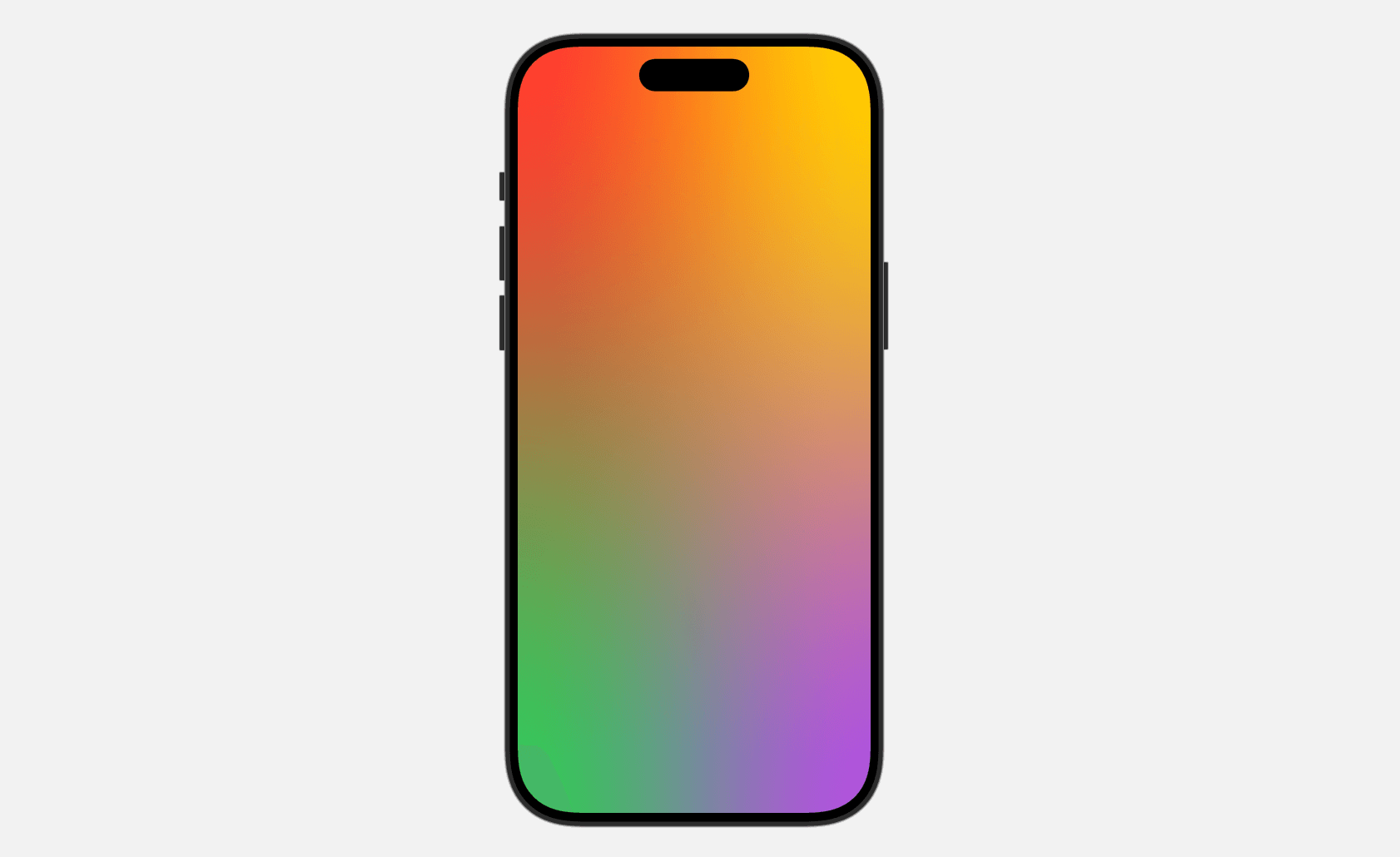
You can adjust the code to create a 3x3 grid like this:
To access the full content and the complete source code, please get your copy at https://www.appcoda.com/swiftui.